

Install Dabble on Mac, Windows, or Linux
Your novel lives in a browser tab, somewhere between forty others, and when the wifi blinks you hold your breath. You can install Dabble on your Mac, Windows PC, or Linux machine as a real app instead.
It gets its own window, its own icon, and it keeps writing when your connection drops.
Here’s how to add it, plus what to try when the install button decides to hide.
On a Chromebook? That’s a different set of steps. See Install Dabble on a Chromebook.
We’ll cover:
- Before you begin: what to know before you install
- Steps: add the app in your browser, start to finish
- Tips: the installed web app vs. the downloadable one
- Troubleshooting: when the install button won’t show
Before you begin
Section titled “Before you begin”This guide covers installing Dabble straight from your browser: no download, no installer. There’s also a downloadable desktop app for Windows, Mac, and Linux, covered in the tips below. A few things worth knowing first:
- The Install Dabble menu item is hidden if Dabble is already installed on this computer.
- Installing doesn’t move your work onto your machine in advance. Dabble loads your account over the network the first time you open the installed app, then keeps a local copy so it works offline afterward. Same account, so your projects and settings come with you.
- Firefox on desktop can’t install web apps. If you use Firefox, open
app.dabblewriter.comin Chrome, Edge, or Safari instead.
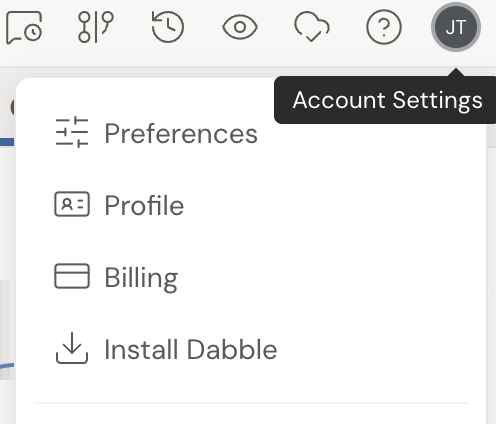
- In Dabble, click your avatar / account menu in the top-right of the header.
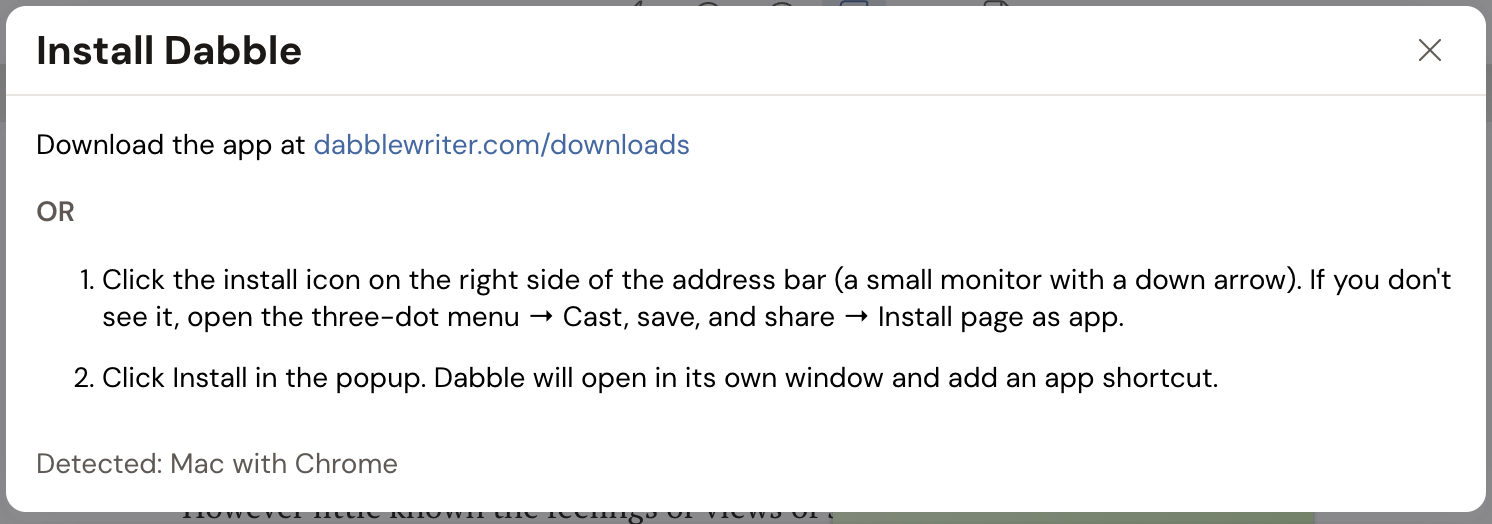
- Click Install Dabble (the download icon). The Install Dabble window opens with steps matched to your computer and browser. A line near the bottom reads Detected: {os} with {browser} so you can confirm it picked the right one.
-
Follow the steps for your browser:
Chrome or Edge (Windows, macOS, Linux):
- Click the install icon at the right of the address bar. It’s a small monitor with a down arrow. If it isn’t there, open the three-dot menu and choose Cast, save, and share then Install page as app.
- Click Install in the popup. Dabble opens in its own window and adds an app shortcut.
Safari (macOS, Safari 17 or newer):
- From the menu bar, choose File then Add to Dock…
- Confirm the name and click Add. Dabble launches from the Dock as a standalone app.
- Don’t see Add to Dock…? Your Safari is older than 17. Install through Chrome or Edge instead.
That’s it. Dabble now lives on your computer like any other app.
- Installed web app, or the downloadable desktop app? Both are real options, and the Install Dabble window offers both: a Download the app at dabblewriter.com/downloads link, then OR the install steps above. The desktop app is available for Windows, Mac, and Linux. Either way you get Dabble in its own window, working offline. The difference is how updates arrive: the installed web app reloads itself, and the desktop app relaunches. See Update Dabble.
- Installing makes Dabble more reliable offline, because the app loads from your device instead of waiting on the network. See Working offline for how offline writing works.
Troubleshooting
Section titled “Troubleshooting”- You don’t see Install Dabble in the menu. It’s hidden when Dabble is already installed on this computer, or when you’re running it inside the downloadable desktop app. Try opening
app.dabblewriter.comin a regular browser tab. - No install icon in the address bar. In Chrome, open the three-dot menu and choose Cast, save, and share then Install page as app. In Edge, open the browser menu and choose the option to install this site as an app.
- You use Firefox. Firefox on desktop can’t install web apps. Open
app.dabblewriter.comin Chrome, Edge, or Safari to install. - You want Dabble in your Mac Dock. Use Safari’s File then Add to Dock…, which needs Safari 17 or newer. Installing through Chrome or Edge on a Mac may not add a Dock shortcut.