

Focus Mode, auto-fade, and typewriter
You sit down to draft, and the page is ringed with toolbars, sidebars, buttons, and a comment or two you meant to deal with later. None of it is the book. All of it is between you and the book.
Dabble has a handful of small features that fade, hide, and rearrange the screen until the page is the only thing left. Some of them run on their own as you type. Others you flip on once in Preferences and forget about.
Mix and match. Turn on the ones that suit how you write, and leave the rest alone.
We’ll cover:
- Auto-Fade: the screen dims once you settle into a writing groove
- Typewriter Scrolling: your line stays put while the page feeds up to meet it
- Auto-hide Toolbar: the formatting bar hides until you reach for it
- Focus Mode: everything but the manuscript, gone
- Default formatting: new pages already look like a book
Auto-Fade
Section titled “Auto-Fade”Settle into a real stretch of writing and the clutter around your text quietly dims and slips away, until only the words are left. Move the mouse a deliberate distance and it all comes back.
Auto-Fade waits for a sustained run of typing, not the odd keystroke. After roughly fifty characters of continuous typing, the surroundings fade. Backspace, edit, or tap an arrow key and the count resets, so light edits won’t trigger it. A single keypress won’t either.
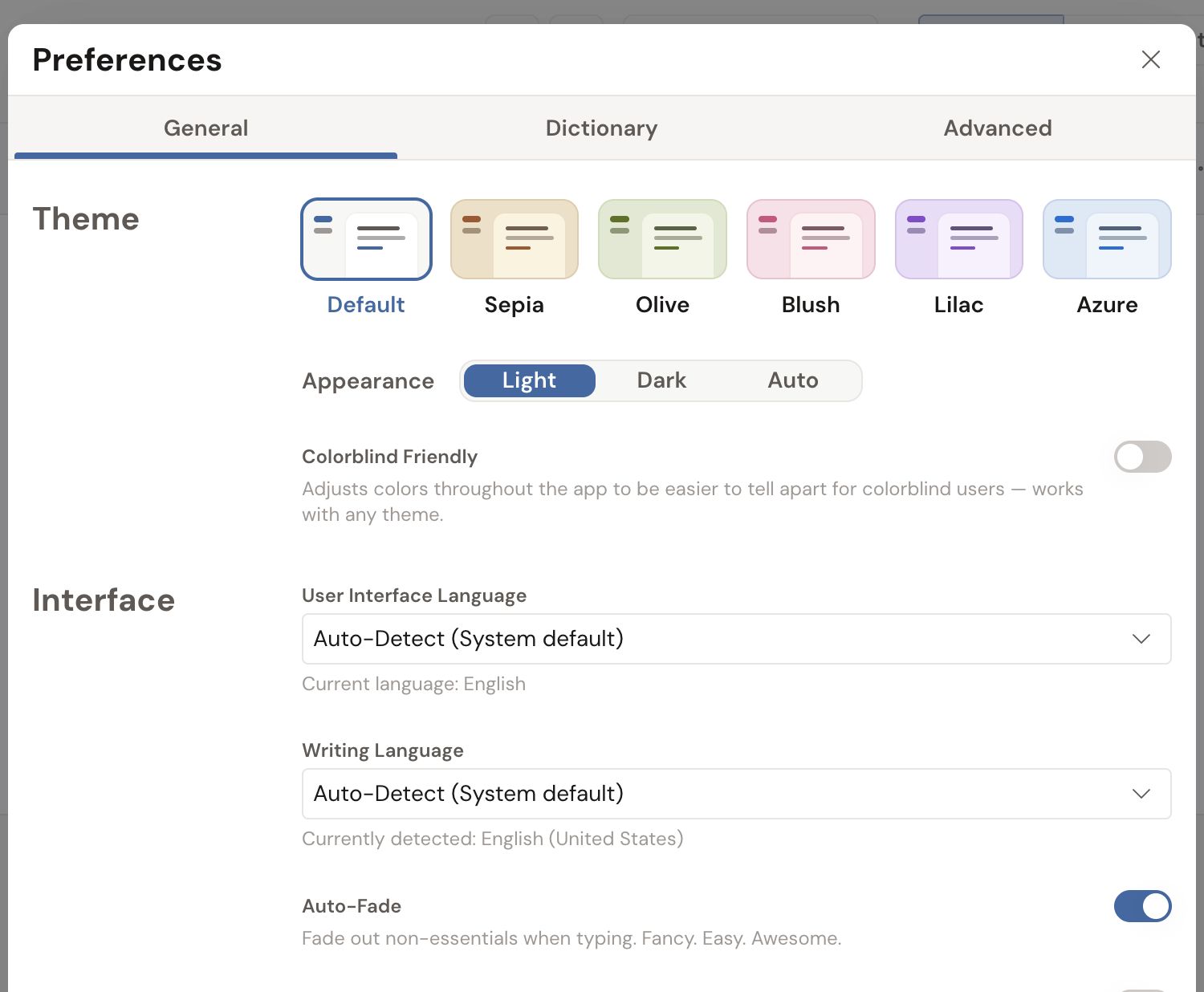
To switch it on or off, open Preferences, go to the General tab, and under Interface find Auto-Fade. Its note reads, “Fade out non-essentials when typing. Fancy. Easy. Awesome.”
Typewriter Scrolling
Section titled “Typewriter Scrolling”Typewriter Scrolling keeps the line you’re writing in one spot on the screen. Instead of your cursor marching toward the bottom of the window, the page scrolls up to meet it, the way paper feeds through a typewriter.
You never stop to scroll. You never end up hunched over, typing at the floor of the screen.
Turn it on under Preferences → General → Interface → Typewriter Scrolling. Its note reads, “Scroll the page up as the cursor moves down. Like a typewriter. No need to take your hands off the keyboard.”
Auto-hide Toolbar
Section titled “Auto-hide Toolbar”The formatting toolbar earns its keep when you’re styling text. When you’re just drafting, it’s clutter at the top of the page.
Auto-hide Toolbar tucks it out of sight and brings it back the moment you hover near the top of the editor.
Switch it on under Preferences → General → Interface → Auto-hide Toolbar, or toggle it with Cmd/Ctrl + Option/Alt + T. Its note reads, “Tuck the formatting toolbar out of the way until you hover near the top of the editor.”
Focus Mode
Section titled “Focus Mode”When you want everything gone, there’s Focus Mode. It takes over the whole window, hiding the header, sidebar, comments, sticky notes, and the feedback button, and centers your page. Nothing left but the manuscript.
Just you and the book.
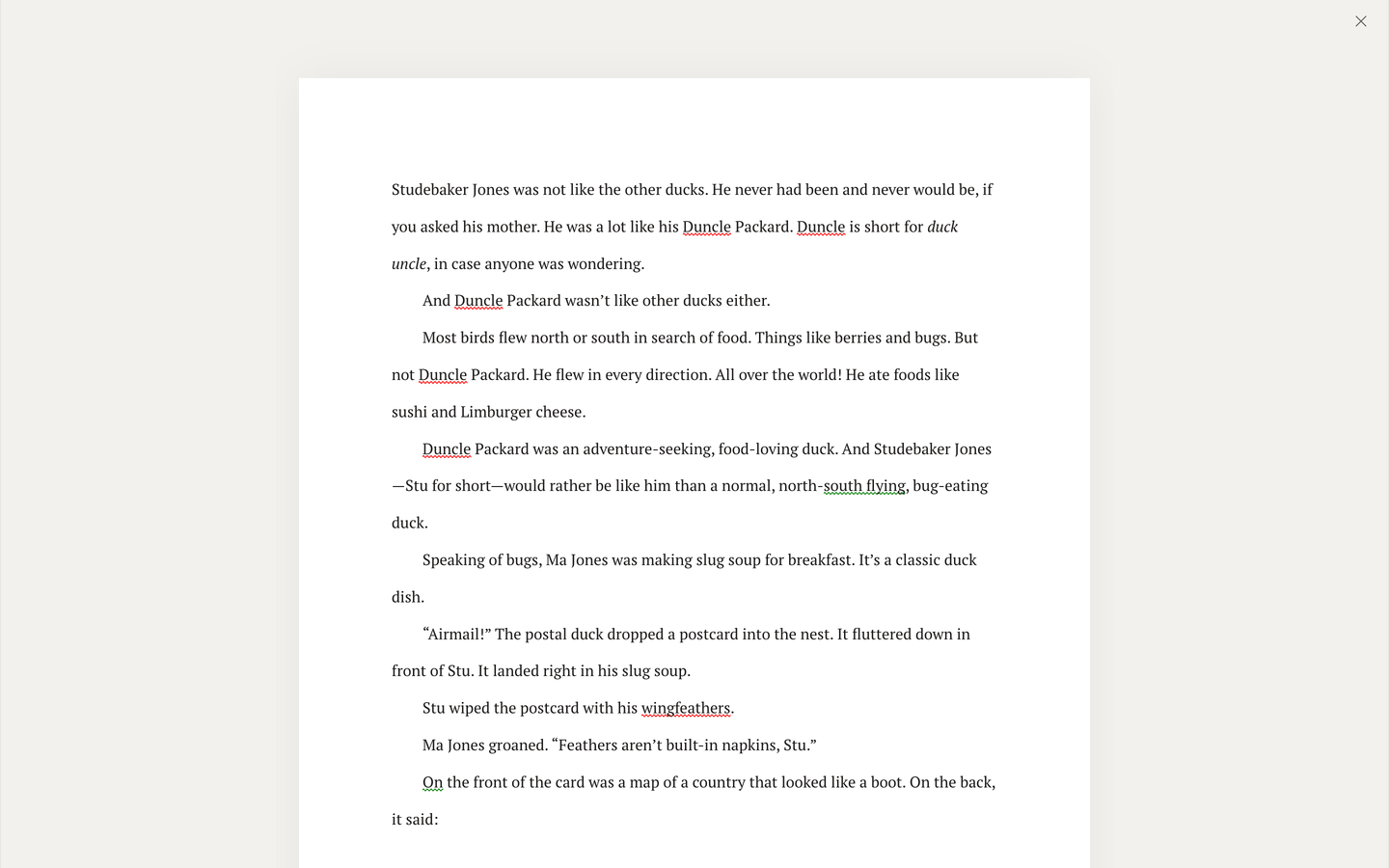
From an open document, press Cmd + Option + M (Mac) or Ctrl + Alt + M (Windows) to enter Focus Mode. You’ll also find Toggle Focus Mode in the keyboard shortcuts list under Account → Keyboard Shortcuts. To leave, press the shortcut again, press Esc, or click the X button (Exit Focus Mode) in the corner.
Focus Mode and Auto-Fade play well together. Focus Mode clears the workspace the instant you turn it on. Auto-Fade eases things away as you write. Use either on its own, or both at once.
Default formatting that gets out of your way
Section titled “Default formatting that gets out of your way”Focus isn’t only about hiding things. New documents already look the way they should, so you can just write instead of stopping to set anything up.
Manuscript pages come pre-formatted to feel like a book: double-spaced paragraphs, no margins, indented first lines. Story Notes go wiki-style instead, with no indents and a little space between paragraphs, which suits notes and organization better than prose.