

Use templates
You built the perfect character sheet. Every field you track, in the order you like. Now picture setting all that up again for character number forty. Use templates in Dabble to build a structure once and reuse it.
Set up a character sheet, a scene layout, or a notebook page exactly how you like it. Store it in your project’s Templates folder. Then drop fresh copies wherever you need them.
Here’s how to build one and reuse it.
Before you begin
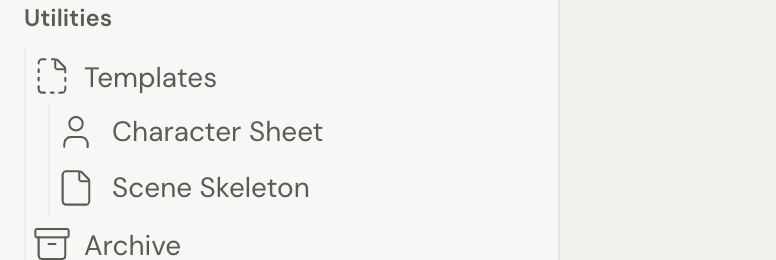
Section titled “Before you begin”Templates are scoped to the project they live in. An item in one project’s Templates folder won’t show up in another. They’re also tied to project type. In a novel project, you can make templates for scenes, chapters, blank pages, parts, books, characters, cast folders, notebook pages, and notebook folders.
Inserting a template makes a full copy. The original in your Templates folder stays untouched, and copying a template doesn’t count toward your word-count goals.
Create a reusable template
Section titled “Create a reusable template”- Open your project. In the left navigation, expand Utilities and click the Templates folder.
- Click + Create… at the top right and choose the item type you want to make reusable: a scene, chapter, character, cast, note, plot line, and so on.
- Build out that item the way you want every copy to start. Add your text, layout, character fields, and any nested structure. Anything inside the item is copied too.
Insert a copy of a template
Section titled “Insert a copy of a template”- In your manuscript, plot, character, or notebook navigation, right-click the doc where you want the new item.
- Click Add New from Template….
- Pick a template from the list. Each one shows its title and a type icon.
- Dabble inserts a full copy at that location. The original stays in your Templates folder.
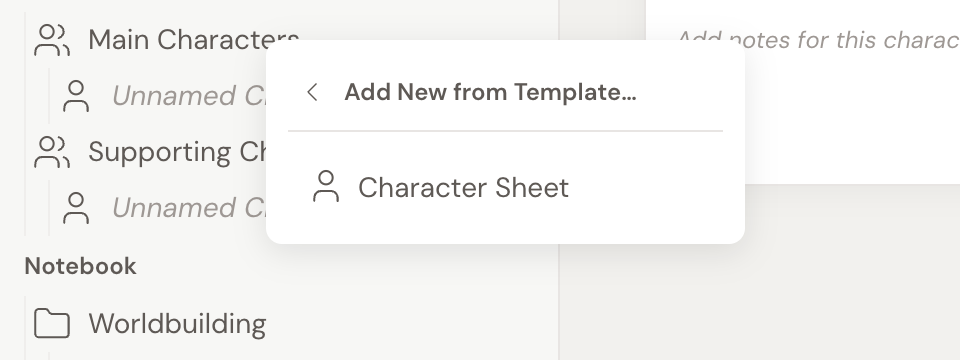
- The Add New from Template… option only appears when your Templates folder holds at least one item that fits the spot you’re adding to. The list is filtered to templates that are valid for that location, so you’ll only see characters when adding a character, scenes when adding a scene, and so on.
- A strong first template is a character sheet pre-filled with the fields you track for everyone, like appearance, motivation, and backstory. Make it once, then start every new character from it.
- The Templates folder is a fixed system folder. You can’t rename, move, delete, or edit it as text, but you can freely add and remove items inside it.
Whole-project templates
Section titled “Whole-project templates”The Templates folder covers reusable pieces inside a project. Dabble also has a separate Template Library for reusing an entire project as a starter, including your own templates, ones shared with you by link, and a curated set from Dabble. You convert a project with Convert to Template from its dashboard card menu, then start new projects from any template you have.
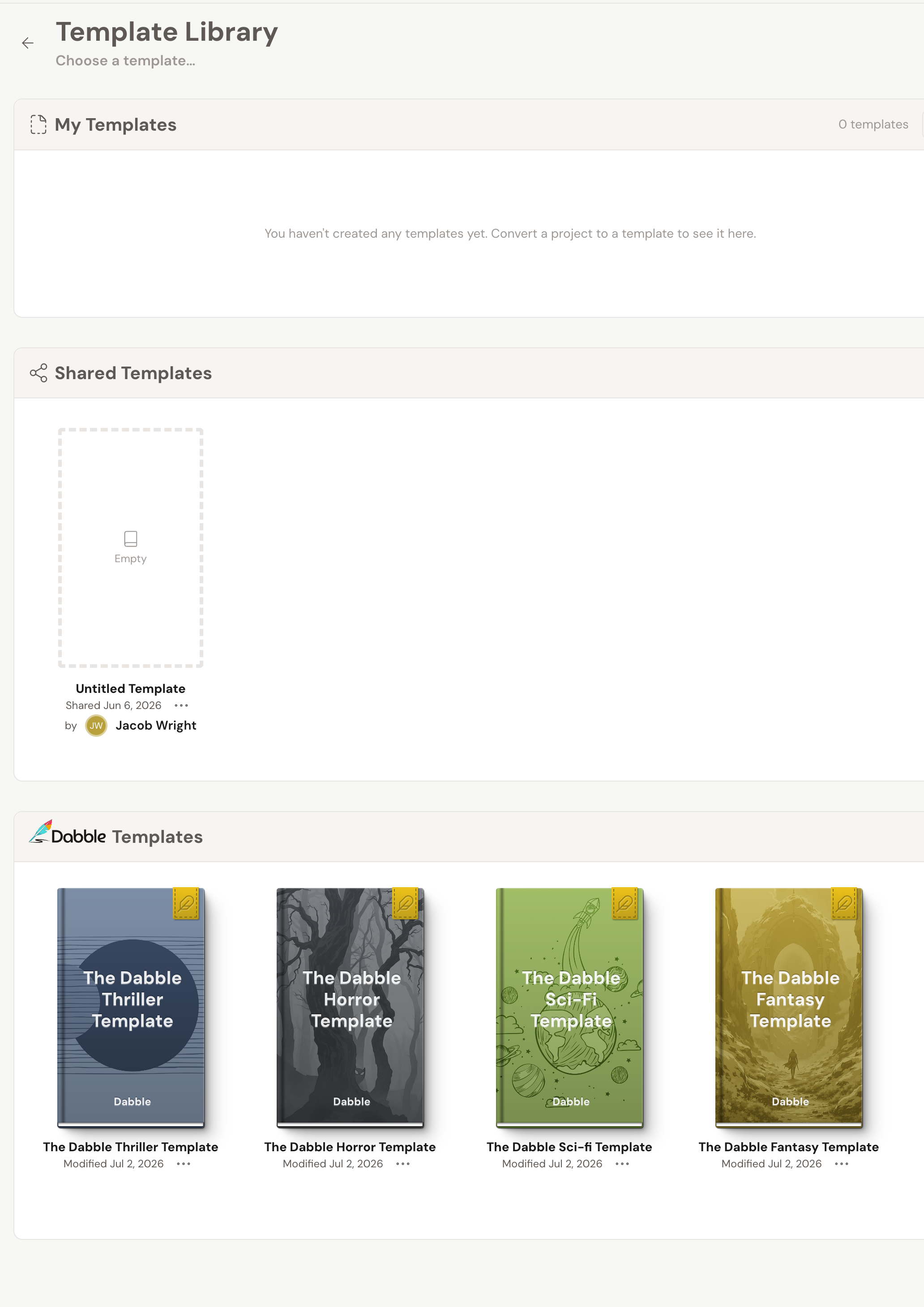
Click Create from Template on your dashboard to open the Template Library and see them all in one place: My Templates you made, Shared Templates someone sent you by link, and Dabble’s curated Templates. A group you have nothing in stays on screen with a short note telling you how to fill it.
Save a project as a template
Section titled “Save a project as a template”- On your dashboard, open the project tile’s … menu.
- Click Convert to Template. The project moves to your Templates view and becomes a reusable starter.
- Open it any time to shape the structure, sample content, and notes every new project should begin from.
Start a new project from a template
Section titled “Start a new project from a template”The steps are the same whether the template is your own, one shared with you, or one of Dabble’s.
- On your dashboard, click Create from Template.
- Pick a template from My Templates, Shared Templates, or Dabble’s Templates.
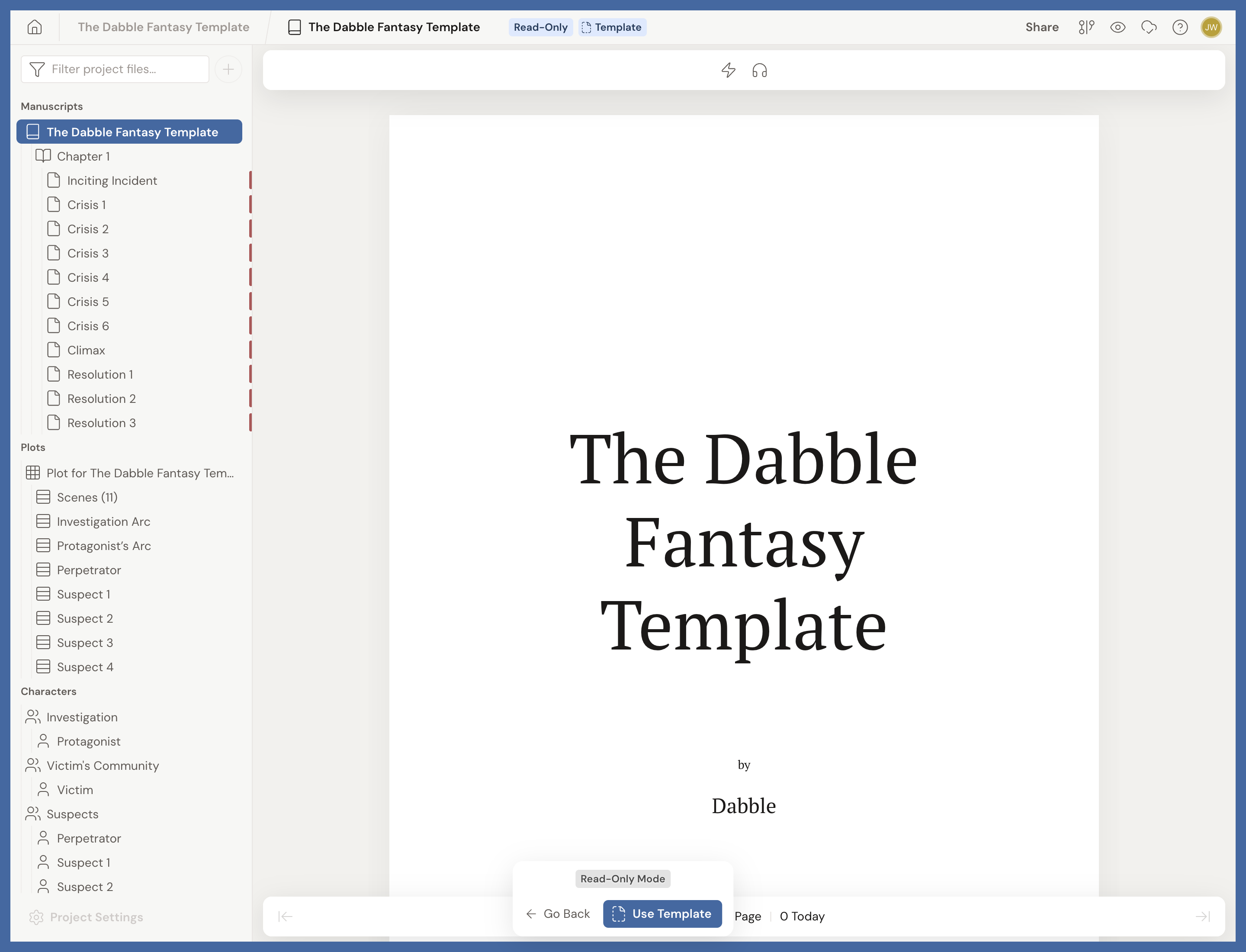
- The template opens in Read-Only Mode so you can look before you commit. Browse its chapters, plot lines, and characters in the left navigation.
- Happy with it? Click Use Template. Dabble builds a fresh project with the template’s whole structure in place, and your edits never touch the original. Not for you? Click Go Back.
Use Dabble’s built-in templates
Section titled “Use Dabble’s built-in templates”Dabble ships a curated set of whole-project templates for common shapes, ready to start from under Templates in the Template Library. Treat one as a scaffold. Create a project from it, then make it yours.
Share a template with someone
Section titled “Share a template with someone”Sharing a whole-project template hands off a copy by link, so anyone you send it to can start their own projects from it.
- On your dashboard, open the template project card’s … (more) menu.
- Click Share Template. Dabble copies a share link to your clipboard.
- Send that link to whoever you want to hand the template to.
- When they open it, they see a Shared Template dialog with Add to Shared Templates and Add & Use Template. Either choice drops your template into their own Template Library, ready to start projects from.
For sharing a project you co-author instead, see Invite a co-author and Share a read-only link.
Publish an update to a shared template
Section titled “Publish an update to a shared template”Changed a template after you shared it? Push a new version so everyone with the link gets it.
- Open the template on your dashboard and make your edits.
- Open its … menu and click Update Shared Template. This one stays greyed out until you’ve actually changed something since you last shared, so if it won’t click, there’s nothing new to push.
- Anyone who added your template from the shared link sees the newest version, ready to pull in. Projects they already started from the older version stay exactly as they are.
To stop sharing altogether, click Revoke Shared Template in the same menu.
On the receiving side, a template someone shared with you sits in Shared Templates in your Template Library. Its … menu offers Create from Template, Copy Share Link, Download for Offline Use, and Remove Template.