

How real-time co-authoring works
You invited someone into your project, and now you’re both about to type in the same manuscript. A small worry creeps in: what happens the moment you both touch the same sentence? Here’s how co-authoring works in Dabble. Every edit syncs live, saves to your device first, and lands right where you typed it.
So two people can share a chapter without stepping on each other’s words. And a dropped connection never costs you anything.
We’ll cover:
- Live editing across devices: how your words show up in each other’s copy
- What each role can contribute: who can write, suggest, comment, or just read
- Working offline: keep writing with no connection
- Your work is safe: why nothing gets lost or overwritten
Live editing across devices
Section titled “Live editing across devices”Everyone’s copy of the project stays in step in real time. A co-author types, deletes, or reformats, and that change travels up to the cloud and back out to everyone with access, usually in a moment. Nothing to refresh, re-open, or save by hand.
Dabble syncs at the level of the change, not the whole document. That’s the trick. Two people can write in the same chapter at the same time, and each person’s words land exactly where they were typed.
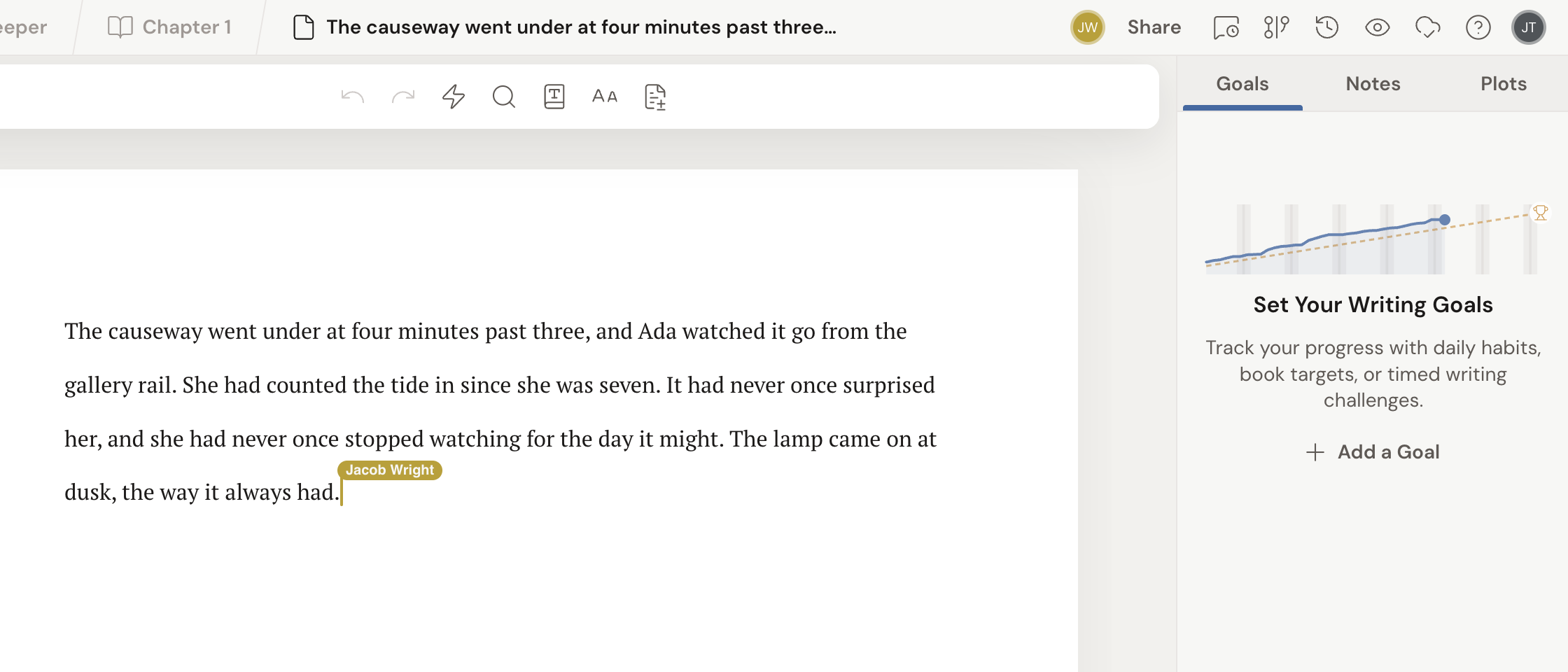
You can also see who’s in the project with you. Everyone currently reading or writing gets an avatar in the header, and their cursor moves through the text with their name attached to it. Click a co-author’s avatar to jump straight to the spot where they’re working.
What each role can contribute
Section titled “What each role can contribute”Co-authoring isn’t all-or-nothing. The role you give each person decides what they can change, and the live sync respects that.
- Owner and Co-Author can write freely. Their edits sync to everyone as direct changes to the manuscript.
- An Editor can edit too, but every change they make is tracked as a suggestion for you to accept or reject. Suggesting mode is always on for them and can’t be switched off.
- A Reviewer can read and leave comments, but not change the text.
- A Reader can only view the project. They see a Read-Only badge and can’t edit or comment.
So when you write alongside a Co-Author, you’ll see each other’s words appear in place. Write alongside an Editor, and their contributions show up as tracked suggestions instead. To learn how to invite people and choose roles, see Invite a co-author.
Working offline
Section titled “Working offline”No connection? Keep writing. Dabble saves your edits on your device and syncs them automatically the moment you reconnect. Your co-authors’ changes flow back to you the same way once you’re online again.
The cloud icon in the top-right of the header tells you where things stand. Hover over it and it spells out the current state:
- All changes saved and synced. Everything on your device matches the cloud.
- Syncing your changes… Your latest edits are on their way up.
- You’re offline — changes are saved on this device and will sync when you reconnect. No network, no problem.
- Can’t reach Dabble right now — you can keep working and changes will sync once the connection is back. You’re online, but Dabble’s server isn’t answering.
- Some changes haven’t synced yet — they’re saved safely on this device. Dabble keeps retrying in the background.
In every one of these states you can keep writing. The icon is there to reassure you, not to stop you. For what each cloud looks like and when to act on it, see Sync status icons.
Your work is safe
Section titled “Your work is safe”Saving to your device first means a lost connection, a closed laptop, or a flaky café network never costs you words. And when two people edit at once, Dabble merges the changes rather than picking a winner, so neither person’s writing disappears.