

Add notes to a scene, character, or page
You’re deep in a scene when it hits you: the knife needs to show up three chapters earlier, or this character’s brother was named Tom back in chapter two.
You could scrawl it on the nearest napkin. Or you could pin it to the exact scene it belongs to, where you’ll actually find it again.
That’s the Notes tab: a stack of little cards attached to whatever document you’re in.
Open the Notes tab
Section titled “Open the Notes tab”Notes live in the right sidebar, next to comments and other tools.
- Open the scene, chapter, or character page you want to annotate.
- In the right sidebar, click the Notes tab.
The tab shows the notes attached to the document you’re currently in. Move to a different scene and the notes change with it, because each note belongs to its document, not to the whole project.
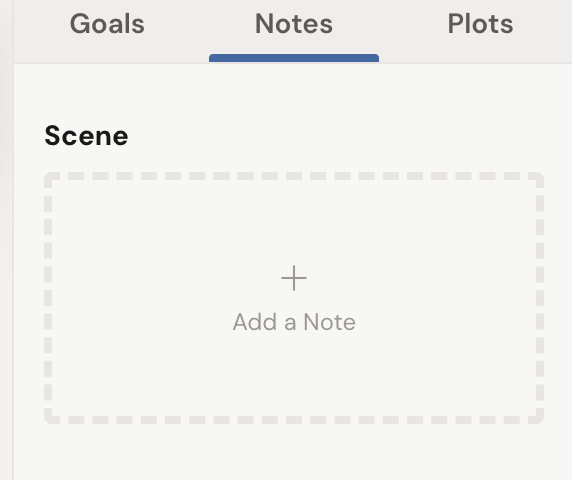
Add a note
Section titled “Add a note”- In the Notes tab, click the + button on a section, or click the Add a Note card.
- Type your note.
It saves as you write. Your note now rides along with that document, so it’s waiting the next time you open the scene.
Use notes for the things that only matter right here: a continuity reminder, a line of research, a “fix this later” flag on a paragraph you’re not happy with.
Find a note later
Section titled “Find a note later”Wrote a note weeks ago and can’t remember where? Let Dabble find it.
Open Quick Open (Cmd+K on Mac, Ctrl+K on Windows) and type a few words from the note. Notes show up in the results alongside documents. Pick one and Dabble opens its document, reveals the Notes tab, and highlights the note for you.
For the full search, see The command palette.